Manage the payment app
This guide covers the Shopify permissions you need to manage the Truemed payment app, where to find its settings page, and how to install, enable, disable, or uninstall it.
Account permissions
You must have account permissions on Shopify to add or manage our third-party payment app on your Shopify store. Please ensure that at least one person on the onboarding call can satisfy this requirement.
Finding the payment app settings page
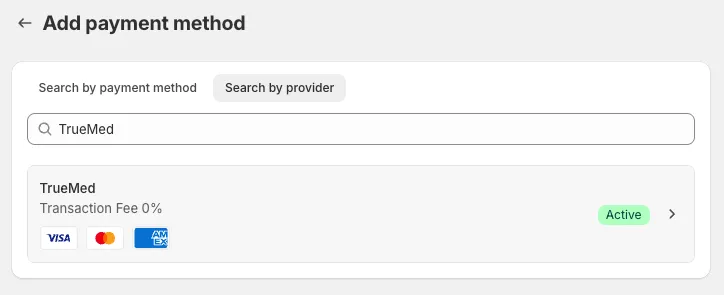
In your Shopify dashboard, click Settings in the bottom left. Navigate to your Payments settings, then scroll down to Additional Payment Methods. If you see Truemed listed there, just click into it to find the settings page. If you don’t, click Add Payment Method, toggle over to Search by Provider, and type Truemed:

Installing the payment app
The Truemed app is not listed on Shopify, so you will need to either receive a link to the app from an engineer or use the link already provided on your onboarding document. All of this happens live during your onboarding call - you’ll install the app and set up your Truemed account in just a few clicks.
How you will receive payouts:
Payouts for orders placed through Truemed are processed via Stripe and will be deposited directly into the bank account you connected. While customers complete their purchase through the Truemed checkout option in Shopify, we handle the transaction on your behalf—so the order does not process through your Shopify store, but you still receive the payout seamlessly.
Enabling the payment app
This will be the last step to installing the payment app on your live onboarding call. After you click Activate, the app will be live and customers can check out using HSA/FSA funds immediately.
You should leave the Visa, Mastercard, and American Express toggles on - this allows us to also process non-HSA/FSA cards in the cases of insufficient funds or HSA/FSA cards being declined for any other reason. In this flow, we give customers instructions to reimburse using the LMN we issue post-purchase. We cover the credit card processing fees for these transactions.
If you are returning to this screen outside of the flow of installing the payment app, you can find it by:
- Opening your Shopify settings
- Clicking “Payments” on the left side navigation
- Clicking “Add payment method” under “Additional payment methods”
- Toggling to “Search by provider” and searching “Truemed”, then clicking in to that option

Disabling the payment app
These instructions are only for stores that have already had an onboarding call with the Truemed team.
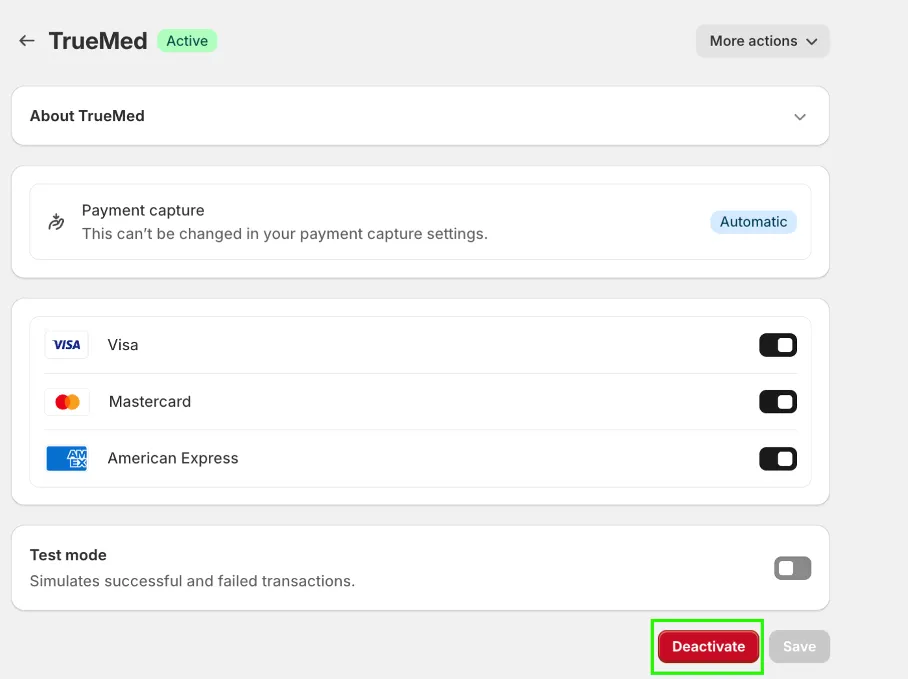
To disable the app, find Truemed under Additional Payment Methods in your Shopify Payments settings. Click on Truemed and then find the button outlined in the picture below. Click deactivate to disable the app, ensuring it will not appear at checkout.

Uninstalling the payment app
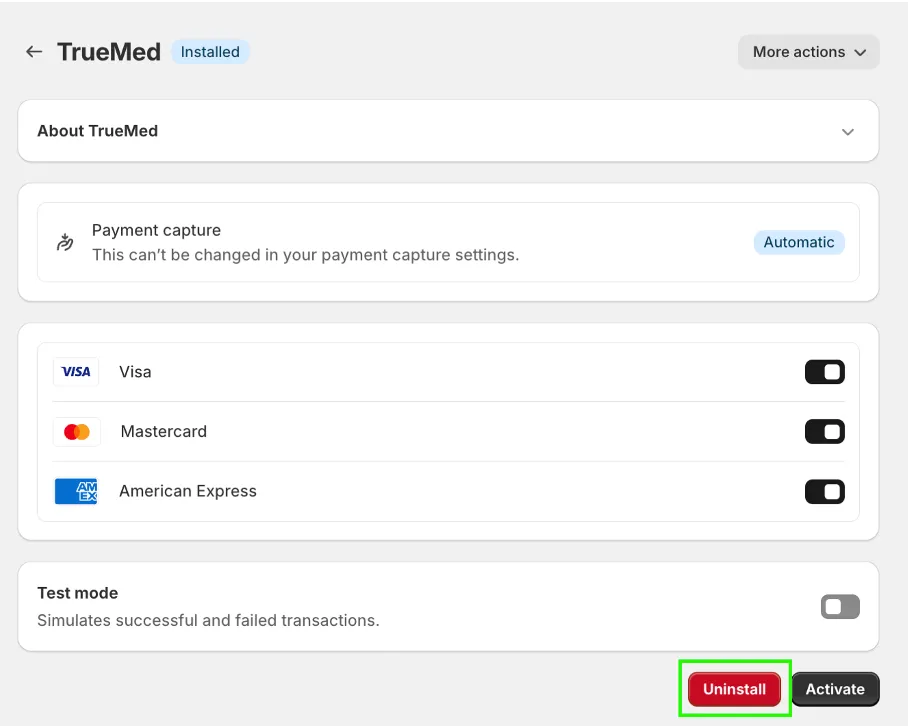
To uninstall the app, you must first deactivate it by following the steps above. Then, you will see a menu similar to this screenshot. Click uninstall to fully remove Truemed from your store.
Fully uninstalling the payment app may prevent your store from processing refunds for orders that used Truemed at checkout in the future. We suggest deactivating the app but not uninstalling it entirely.